
Online & Mobile Banking Security Check-Up!
With fraud attempts on the rise, it is important to take extra caution in protecting your personal data.
There are two ways to do this in Online and Mobile Banking: First, make sure your contact information is up to date. Second, make sure you have a phone number listed for both Phone Call (Voice) and SMS (Text) under 2-Factor Authentication.
Follow the instructions below to secure your Online and Mobile Banking accounts:
Make Sure Your Contact Information Is Accurate
[Step 1] Log in to Online Banking. You can do this from the website or the Bluestone Bank Mobile App.
[Step 2] Go to the Settings page and click on Change of Address.
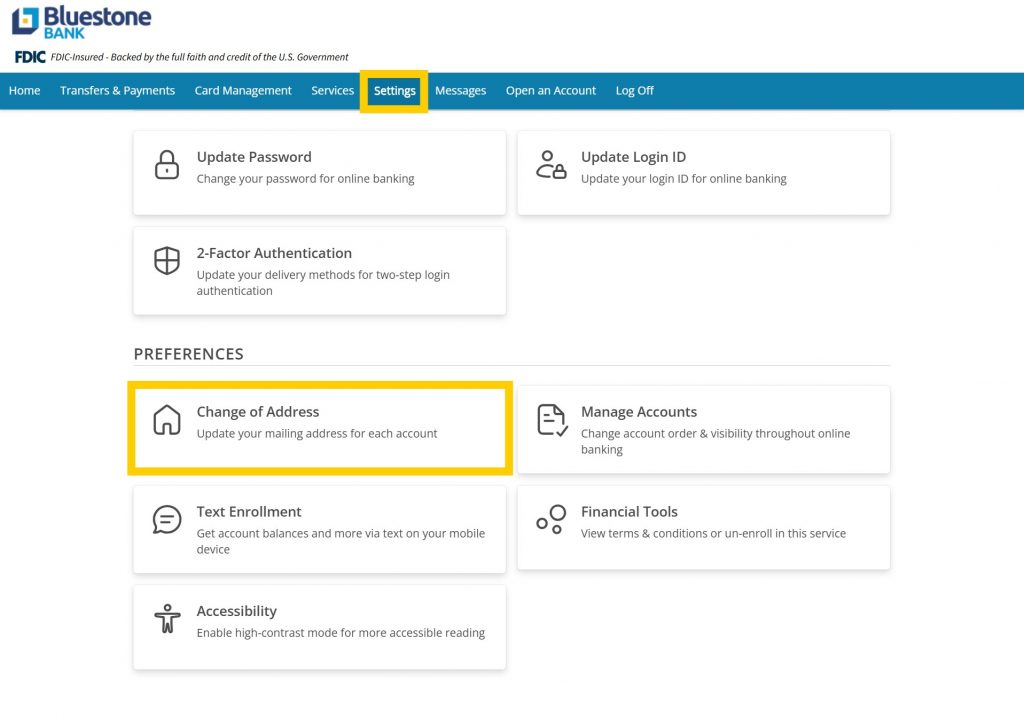
[Step 3] You will be taken to the Update Account Information page. From there, click the dark blue Manage Addresses and Contacts button.
[Step 4] The Manage Addresses and Contacts button will take you to a list of contact information you have on file in Online Banking. Make sure all of it is up to date, including Mailing Address, Physical Address, and Telephone. If you need to make updates to one of these methods of contact (Example below: Telephone), click the three vertical dots next to the one you want to add or change, followed by Update Contact.
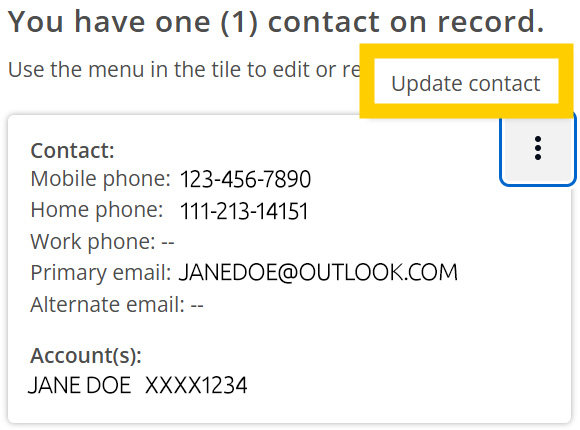
[Step 5] On the next page, make any necessary changes to your contact information, and then click NEXT. You will be prompted to review your changes. Once you’ve done that, click SUBMIT, followed by Done.
Make Sure You Have Phone Call (Voice) and Text Options for 2-Factor Authentication
When logging into Online & Mobile Banking from a new device, you will be prompted to select a method of delivery for a 2-Factor Authentication code. Currently, these options are Email Address, Phone Call, or Text Message. Please note: as email is a much less secure way to access the code, it will soon be removed as an option. It is important for your security that you have a phone number listed for at least Phone Call as a method of delivery, though Text Message is the most secure option. Bluestone Bank recommends you list a number for both by following the instructions below:
[Step 1] Log in to Online Banking. You can do this from the website or the Bluestone Bank Mobile App.
[Step 2] Go to the Settings page and click on 2-Factor Authentication.
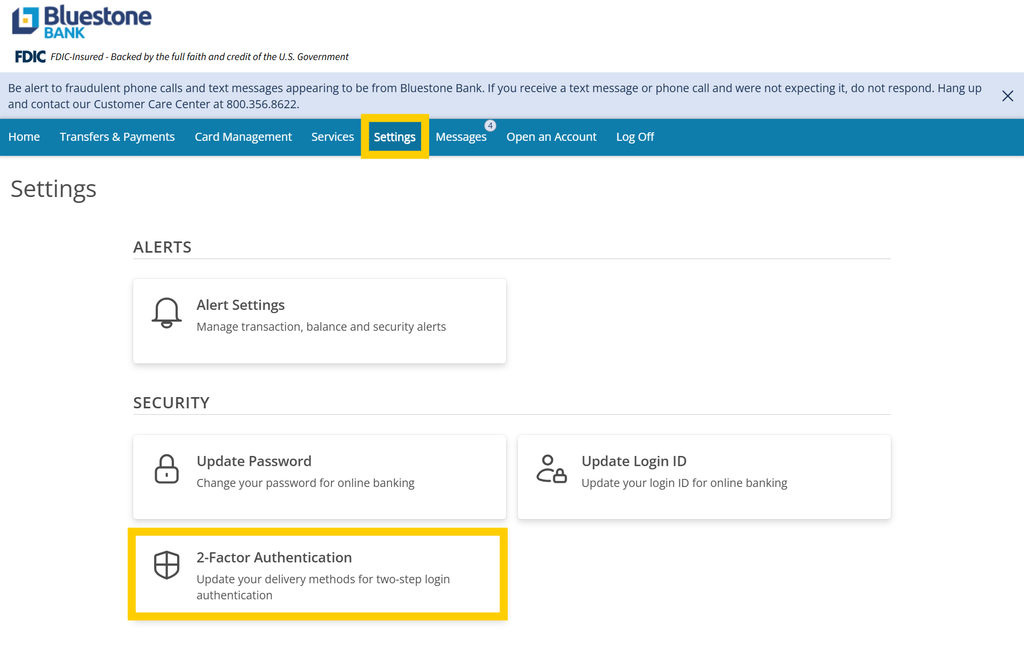
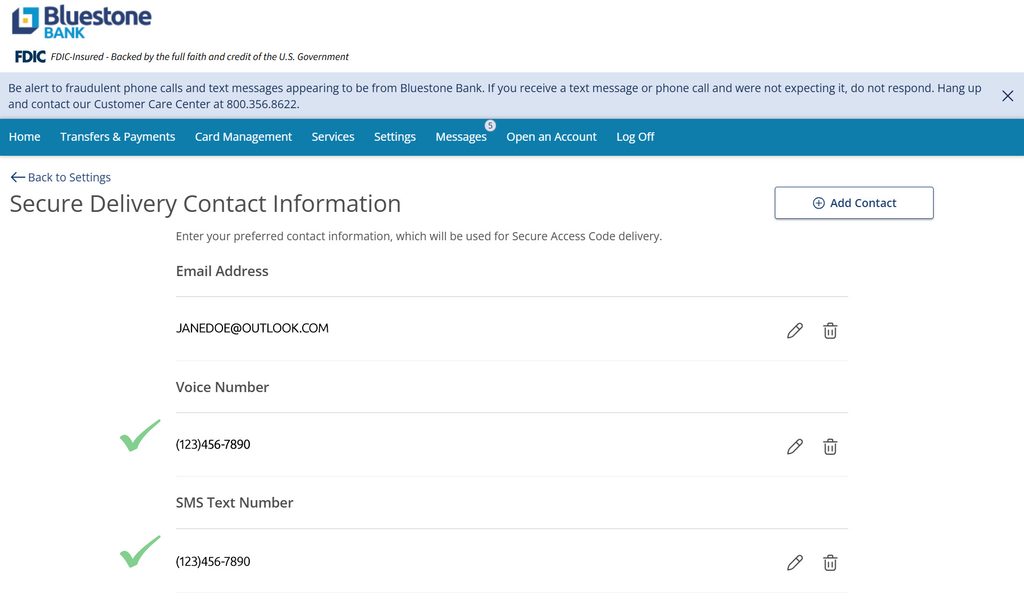
[Step 3] You will be taken to the Secure Delivery Contact Information page. Make sure you have correct phone numbers listed for both Voice Number and Text Number. If you need to add one, click Add Contact and select the contact method you need to add from the drop-down list (Example: New Text).
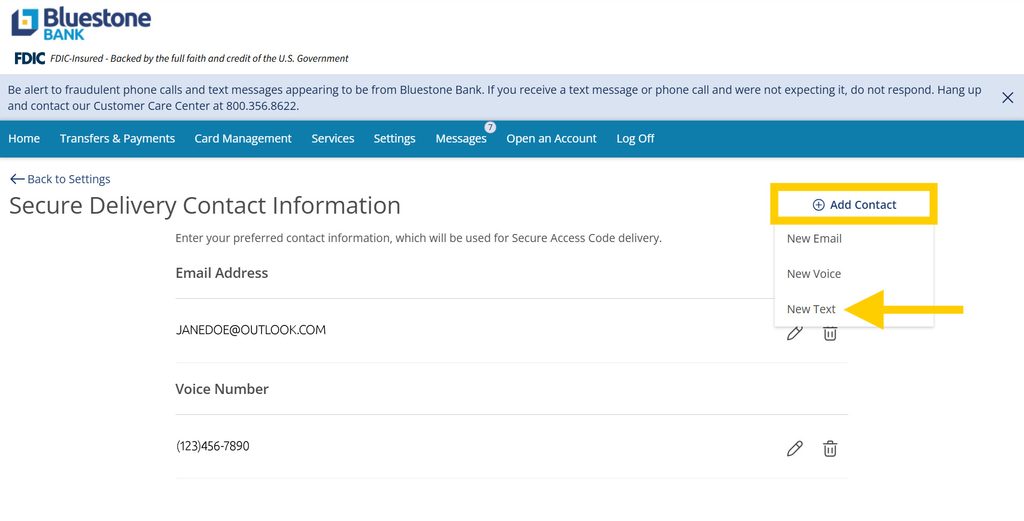
[Step 4] A new page will open for the contact method you chose. Input your information into the required fields, and then click SAVE.
Once you have an accurate Voice Number and SMS Text Number listed (example below), you are all set!